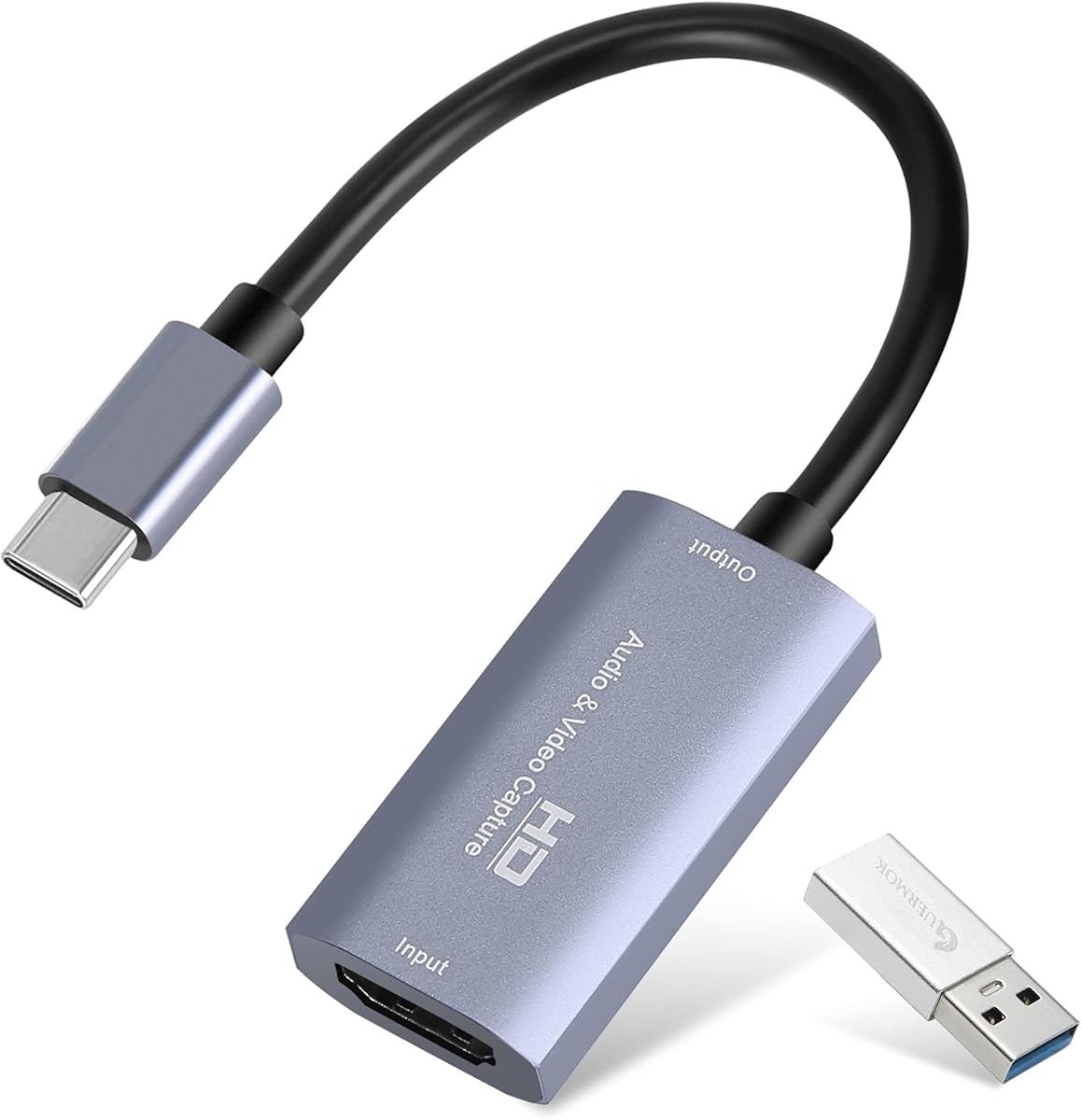
Guermok Video Capture Card
4.4Editor score
USB 3.0 high speed
Plug and play design
Low latency streaming
Compare the top HDMI recorders for 2026. This guide evaluates standalone recorders and capture cards for gaming, archiving, and live streaming performance.
HDMI recorders are essential tools for anyone looking to capture high-definition video from consoles, cameras, or set-top boxes. They allow you to save content directly to storage without needing a computer. Finding the right device depends on your specific needs and budget constraints.
We compared ten leading HDMI recorders based on resolution support, latency, compatibility, and ease of use. Our analysis covers standalone units and USB capture cards. Each product was evaluated on its ability to record smoothly and reliably for various applications.
Each pick highlights key features, pros, and cons to help you make an informed decision. Prices and availability can change frequently on major online retailers. Check the current listings before purchasing to ensure you get the best deal available today.
4.4Editor score
4.0Editor score

4.1Editor score
This table provides a quick side-by-side view of the top ten HDMI recorders available this year. Compare key specifications like resolution, connectivity, and special features to find the right match for your setup.



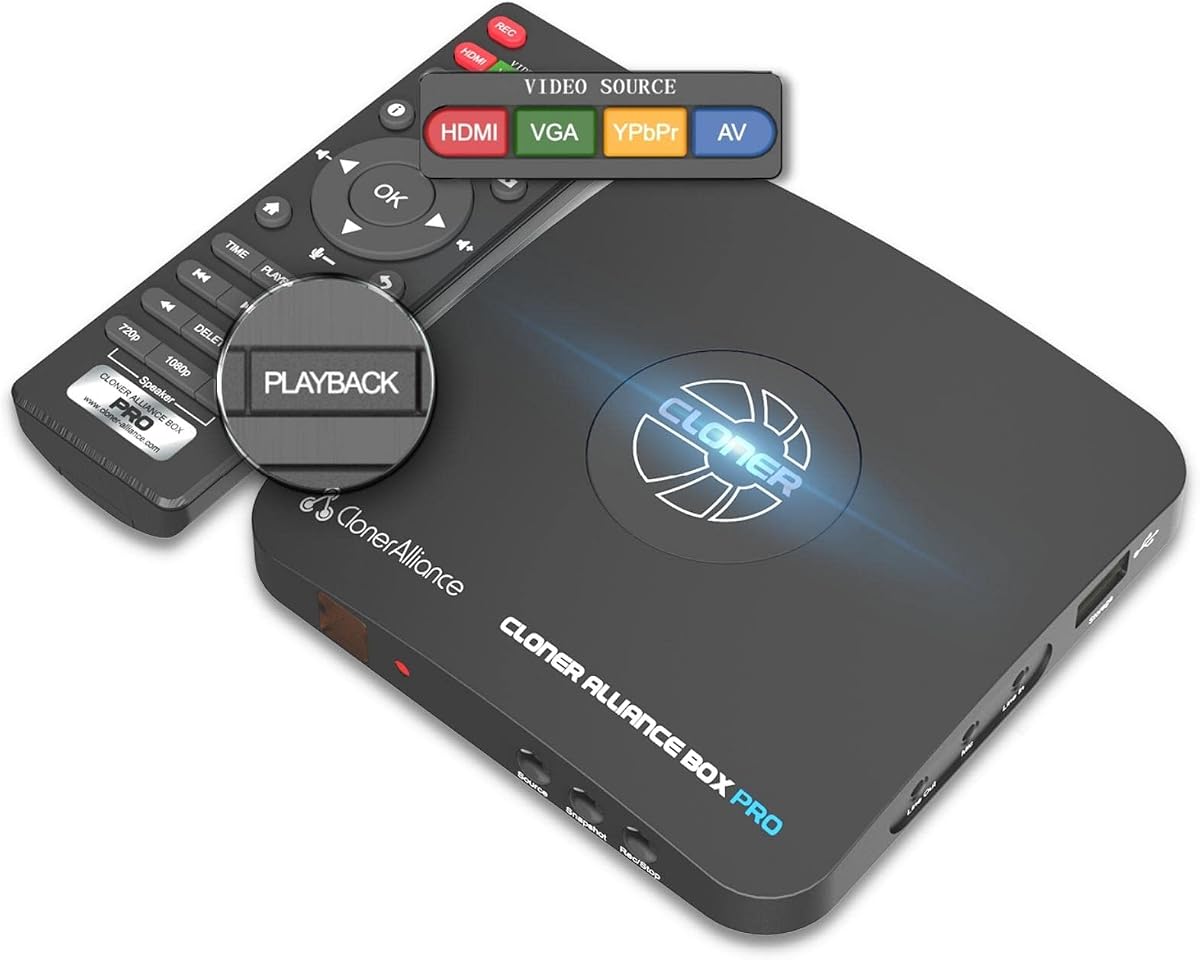
The ClonerAlliance Box Pro is a robust standalone recorder designed for capturing video from various sources. It supports 1080p at 60fps and allows direct recording to USB storage. This makes it ideal for users who want to archive content without a PC.
We may earn a commission when you buy through this link, at no additional cost to you.
Its ability to handle analog inputs like RCA and VGA sets it apart from many digital-only competitors. The included remote makes playback on a TV straightforward. You can schedule recordings to capture shows automatically without manual intervention.
While it does not support 4K resolution, its reliability and ease of use are strong points. The lack of computer dependency is a major benefit for seniors or non-technical users. It simplifies the process of digitizing old tapes or recording TV shows.
This device is best for anyone needing a plug-and-play solution for archiving analog or HDMI content. It provides a reliable way to save videos directly to a drive. Check the latest pricing to see if it fits your budget.
You do not need a computer to record or playback videos with this device. It simplifies the workflow significantly for home users.
Supports RCA and VGA inputs which lets you digitize older VHS tapes or camcorders easily.
We may earn a commission when you buy through this link, at no additional cost to you.
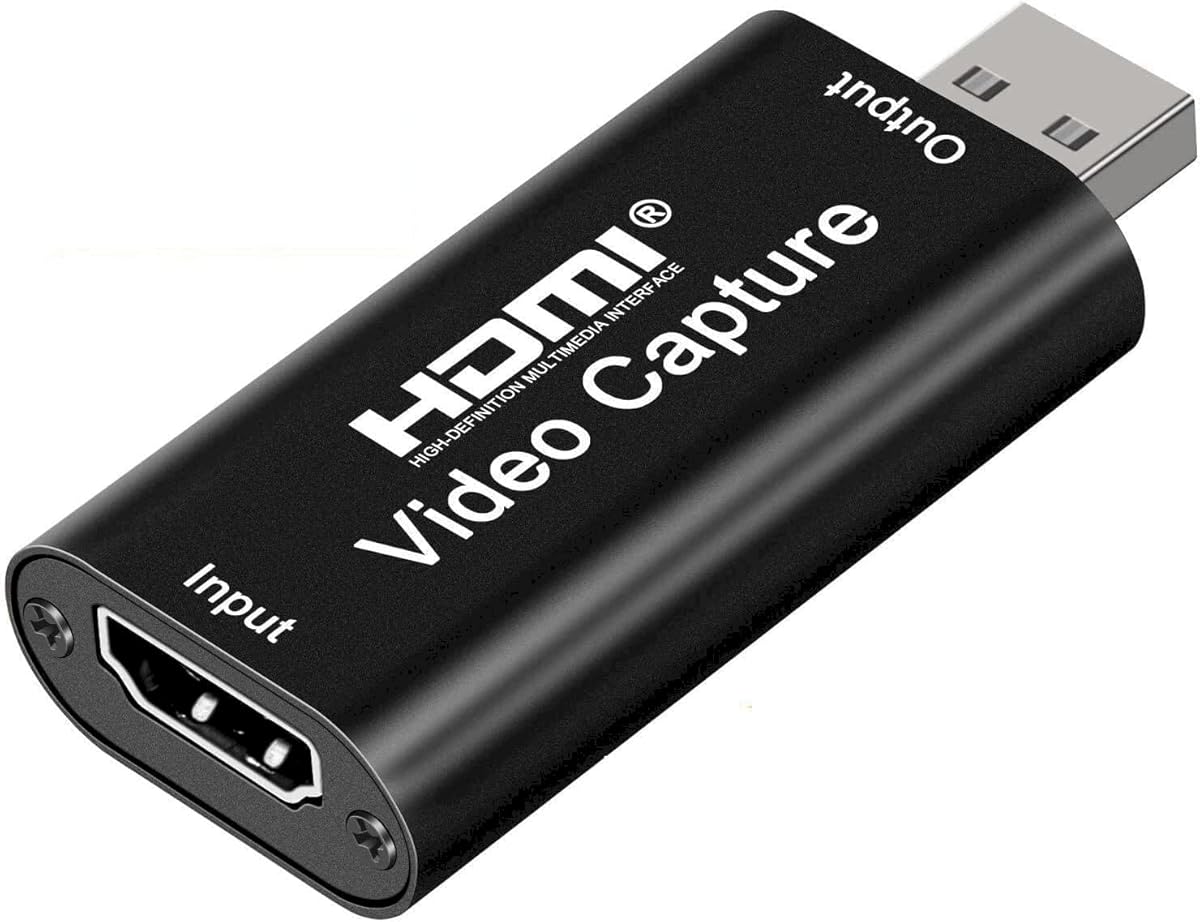
The Guermok Video Capture Card offers an affordable entry point into high-quality video capture. It uses USB 3.0 to ensure fast data transfer and low latency. This makes it suitable for live streaming and gaming recordings on a budget.
We may earn a commission when you buy through this link, at no additional cost to you.
Its compact design allows for easy transport to different setups. It works with most major platforms like OBS and Zoom. The aluminum alloy housing helps with heat dissipation during long recording sessions. This ensures stable performance without overheating issues.
While it requires software to function, the setup is straightforward. You simply plug it in and select it as a video source in your app. The latency is low enough for real-time streaming without noticeable delays between action and broadcast.
This card is perfect for streamers who need a reliable device without spending much. It supports multiple systems and is easy to carry. Check current deals to see if this fits your streaming setup needs.
Provides solid 1080p capture quality at a price point that fits most budgets easily.
Small enough to fit in a bag for on-the-go streaming or recording at events.
We may earn a commission when you buy through this link, at no additional cost to you.
The ClonerAlliance UHD Pro is a high-end standalone recorder capable of capturing 4K content. It supports advanced H.265 codecs which reduce file sizes without losing quality. This device is ideal for users who need high fidelity archiving.
We may earn a commission when you buy through this link, at no additional cost to you.
It allows you to record directly to a USB drive without needing a computer. The included remote makes playback on a TV simple. You can also use it with a PC for live streaming if you prefer that route.
The ability to schedule recordings ensures you never miss important content. It supports up to 50Mbps bitrate which provides crisp video. The design is friendly to use for older adults or newbies alike.
Investing in this device makes sense if you need 4K quality and standalone convenience. It bridges the gap between consumer and prosumer needs. Check if the premium price fits your budget for high-end recording.
Uses H.265 codec to keep file sizes smaller while maintaining excellent video quality.
Works independently from a PC so you can record shows without leaving the device on.
We may earn a commission when you buy through this link, at no additional cost to you.
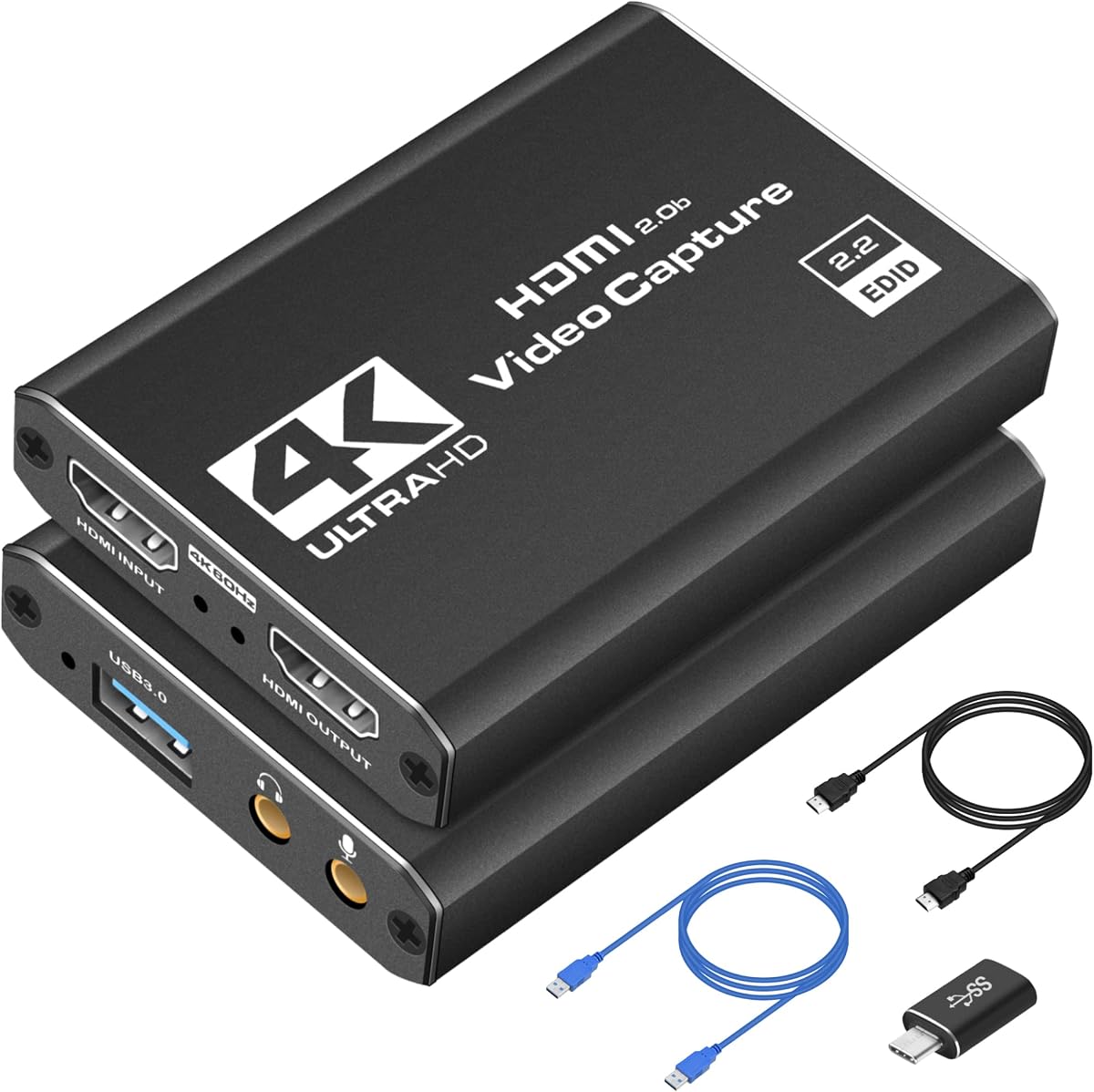
This capture card is designed for gamers who want to stream without lag. It features an HDMI loop out so you can play while recording. The low latency ensures your gameplay remains smooth during live broadcasts.
We may earn a commission when you buy through this link, at no additional cost to you.
It supports USB 3.0 for fast data transfer. This helps maintain stable frame rates during recording. The mic input allows you to add commentary directly without needing an external mixer.
The device is easy to use and works with most major software. It does not require drivers which simplifies setup. You can connect consoles, cameras, or PCs easily to start capturing video.
Ideal for content creators focused on gaming content. It balances performance and ease of use well. Check the current price to see if it matches your streaming requirements.
Allows you to play your game on a monitor while capturing the feed simultaneously.
Built-in jack for your microphone so you can add voice commentary during streams.
We may earn a commission when you buy through this link, at no additional cost to you.
The Audio Express AXHDCAP is a lightweight capture card perfect for simple needs. It uses USB 2.0 which limits bandwidth but keeps costs low. It supports 4K input but outputs at 1080p 30fps.
We may earn a commission when you buy through this link, at no additional cost to you.
It is easy to set up and works with most streaming software. The aluminum case helps with heat dissipation. This makes it suitable for video conferencing or basic live streaming tasks.
You will get smooth performance for standard content. However if you need higher frame rates it might not be enough. It is a good option for beginners starting with streaming.
Best for users who need an affordable device for occasional capture. It is easy to carry and use. Check if the speed limitations fit your workflow before buying.
Small form factor makes it easy to toss in a laptop bag for travel.
Requires no drivers so you can start capturing immediately after plugging in.
We may earn a commission when you buy through this link, at no additional cost to you.
This capture card is built for creators who travel often. It is small and lightweight so it fits in your bag. The USB 3.0 connection ensures fast data transfer for smooth streaming.
We may earn a commission when you buy through this link, at no additional cost to you.
It supports 1080p at 60fps which is great for gaming. The latency is low enough for competitive streams. You can start using it right away without installing drivers.
It works well with popular software like OBS and Streamlabs. This makes it versatile for different streaming needs. The design is simple but effective for daily use.
Ideal for mobile streamers who need reliable performance on the go. It balances price and features well. Check the current price to ensure it fits your budget.
Lightweight build means you can easily take your streaming setup to different locations.
Minimizes delay between gameplay and broadcast for a better viewer experience.
We may earn a commission when you buy through this link, at no additional cost to you.
This capture box offers a unique dual input setup for professionals. You can connect two HDMI sources and switch between them. The built-in screen lets you preview content without a monitor.
We may earn a commission when you buy through this link, at no additional cost to you.
It supports battery power which is great for field recording. This adds flexibility if you are away from a power outlet. The PIP and POP features allow for multi-screen management.
While it is pricier than other options the features justify the cost for some users. It is robust and durable for professional use. You can save recordings to USB or SD cards.
Best for setups requiring multiple video sources or mobile recording. It provides tools that most recorders lack. Check the current pricing to see if it fits your needs.
Allows you to connect and switch between two different HDMI sources easily.
Supports external batteries so you can record away from a power source.
We may earn a commission when you buy through this link, at no additional cost to you.
The ZowieREC offers a sleek aluminum design with standalone 4K recording. It does not need a computer to function which adds convenience. The schedule feature helps automate your recording sessions.
We may earn a commission when you buy through this link, at no additional cost to you.
It supports 4K passthrough so you can watch while recording. The device feels sturdy and well built. It is a good choice for those who value aesthetics and durability.
However user ratings are lower than some competitors. This suggests potential usability issues. You might want to check reviews before buying to ensure it meets expectations.
Best for users who want a premium standalone 4K recorder. It offers good features but check the reliability. Look at current prices to see if it is worth the cost.
Features a sleek aluminum casing that looks professional and resists wear.
Let you set automatic recordings so you never miss important content.
We may earn a commission when you buy through this link, at no additional cost to you.
The ClonerAlliance ViewPro is a portable recorder with a large screen. This lets you preview and playback videos directly. It supports 1080p at 60fps for clear recording.
We may earn a commission when you buy through this link, at no additional cost to you.
It includes analog inputs so you can connect older devices. The schedule feature helps you automate captures. It is a great choice for field work or travel.
The screen makes it easy to use without a TV. This saves time and equipment. It is sturdy and reliable for daily use.
Best for anyone needing a portable solution with a display. It simplifies the workflow for video professionals. Check current pricing to see if it fits your budget.
Allows you to review footage immediately without needing a monitor or TV.
Lets you connect older devices like VCRs or camcorders via RCA or VGA.
We may earn a commission when you buy through this link, at no additional cost to you.
The Blackmagic UltraStudio Express is a professional interface for capture. It uses SDI inputs which are standard in pro broadcast. This ensures high quality video capture for studio environments.
We may earn a commission when you buy through this link, at no additional cost to you.
It offers loop output which lets you monitor while recording. The build quality is excellent and reliable. It is a standard choice for many broadcasters.
While it requires SDI sources it provides unmatched quality. It is not for casual users but professionals. It supports high speeds for modern video formats.
Best for studios needing reliable professional capture. It offers features others do not. Check if your sources match its requirements before buying.
Accepts SDI signals which are robust for professional broadcast environments.
Provides a loop output so you can monitor the feed without signal loss.
We may earn a commission when you buy through this link, at no additional cost to you.
Choosing the right HDMI recorder depends on your specific needs and budget. Consider resolution, connectivity, and software compatibility before buying.
Ensure the device supports the resolution you need such as 1080p or 4K. Higher frame rates like 60fps are important for smooth motion in gaming. Check if the input supports higher resolution than the output.
Look for devices that match your source quality to avoid downscaling.
Decide if you need standalone recording or PC recording. Standalone units save to USB drives directly which is convenient. PC capture cards need software to save files.
Make sure you have enough storage space for your recording needs.
Check if the device has the inputs you need such as HDMI or SDI. Some units support analog inputs like RCA for older devices. Ensure you have the right cables for your source.
Matching ports to your setup prevents compatibility issues later.
Standalone recorders do not need a computer to function. This is great for simplicity and reliability. PC cards offer more features but require a system running software.
Choose standalone if you want a plug-and-play solution.
Low latency is crucial for live streaming or gaming. Look for USB 3.0 devices which handle data faster. High latency can cause delays in your broadcast.
Prioritize low latency devices for real-time streaming.
PC capture cards rely on software like OBS or Zoom. Ensure the device is compatible with your preferred apps. Some standalone units have built-in scheduling software.
Check software compatibility before buying to avoid setup issues.
A sturdy build ensures longevity especially with frequent use. Aluminum housings help with heat dissipation. Check reviews for long term reliability.
Invest in a device with good build quality.
Compare prices against features to get the best value. Budget options may lack 4K support but work well for 1080p. Premium units offer more features but cost more.
Balance your needs with your budget.
Connect the recorder to your source using the appropriate HDMI or analog cables. Ensure the device is powered properly before starting any recording session.
Select the correct input source on the device to match your video feed. If using a PC card install necessary software drivers first to enable functionality.
Keep the device in a cool dry place to prevent overheating during long sessions. Regularly check storage media to ensure videos are saved correctly.
Not all HDMI recorders require a PC. Standalone units can record directly to USB drives. Capture cards usually need software running on a computer to function.
Some models support 4K recording while others are limited to 1080p. Check the specs carefully to ensure it meets your resolution needs before buying.
Most standalone recorders use USB flash drives or external hard disks. Capture cards save to your computer drive. Ensure you have enough space for your files.
Some recorders support RCA or VGA inputs for older devices. Check the product details to see if it handles analog signals.
Use USB 3.0 ports and ensure your software is optimized. High quality cables also help reduce signal loss and lag.
Loop output lets you play video while recording. This is useful for gaming or streaming where you need to monitor the feed.
The ClonerAlliance Box Pro and Guermok capture card are top choices for different needs. Standalone units offer convenience while capture cards provide streaming flexibility.
Prioritize resolution and latency based on your use case. Professional users may prefer SDI options while gamers need low latency solutions.
Always check current prices and compatibility before buying. Ensure the device fits your existing setup for the best experience.