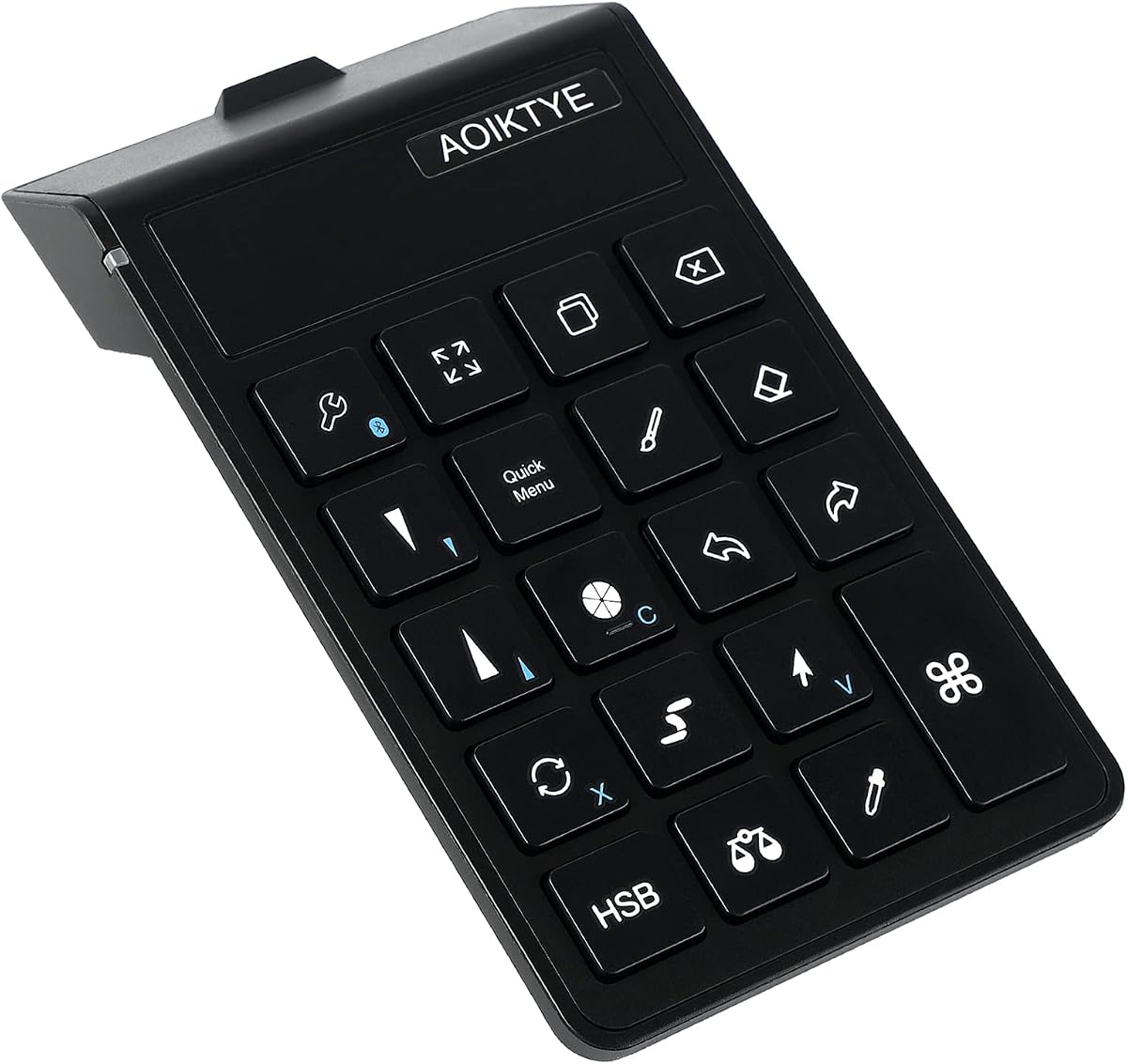
AOIKTYE Keyboard
4.5Editor score
Designed for Procreate
22 shortcut keys included
84 hour battery life
This guide compares the top ten iPad Drawing Bluetooth Controller options to help artists find the perfect device for efficient digital sketching and creative
Finding the right iPad Drawing Bluetooth Controller can transform your digital art workflow significantly. These devices offer physical shortcuts and dials that streamline complex software tasks without needing a keyboard.
We have carefully evaluated ten leading models based on connectivity, battery life, customization options, and overall user experience to determine which ones truly stand out for professional and hobbyist artists.
Each pick below highlights specific strengths and ideal use cases to guide your decision. Please note that product availability and pricing can change frequently, so verify details before purchasing.
4.5Editor score

4.2Editor score

4.4Editor score
The following table provides a side-by-side overview of each product's key specifications and features to help you quickly identify the model that fits your specific creative needs and budget constraints.


The HUION Keydial Mini stands out as a versatile companion for digital artists using an iPad or desktop setup. With a rating of 4.2 stars, it is praised for its ability to map complex shortcuts to physical buttons, speeding up workflows in applications like Photoshop and Clip Studio Paint.
We may earn a commission when you buy through this link, at no additional cost to you.
Its standout feature is the programmable dial which allows for precise control over brush sizes or timeline navigation without taking your eyes off the screen. The inclusion of 18 programmable keys ensures that you have immediate access to your most frequently used functions while the anti-ghosting technology guarantees reliable input even when multiple keys are pressed simultaneously.
While the device requires installing a driver to fully unlock its potential, the setup process is straightforward. Some users might find the learning curve for mapping keys slightly steep at first, but the investment in time pays off with significant efficiency gains during long editing sessions.
This controller is ideal for creative professionals and hobbyists who need a dedicated keypad to streamline their digital painting or video editing process. Whether you are working at a desk or on the go, the Keydial Mini offers a robust solution for managing software commands effortlessly.
Assign specific tools and shortcuts to buttons so you can focus on creating rather than navigating menus.
Use the dial to adjust brush sizes or zoom levels smoothly without interrupting your creative flow.
We may earn a commission when you buy through this link, at no additional cost to you.
For artists who primarily use Procreate on their iPad, the AOIKTYE Keyboard offers an unbeatable value. Boasting a 4.5-star rating, this device is tailored to enhance the Procreate experience with dedicated keys for common actions like layer switching, brush resizing, and color adjustments.
We may earn a commission when you buy through this link, at no additional cost to you.
The key strength of this keyboard lies in its battery life, which can last up to 84 hours on a single charge. This makes it an ideal choice for artists who work for extended periods without access to a power source. The wireless connection is stable and ensures you can work comfortably from a distance.
Although it is optimized for Procreate, it does have limited flexibility compared to more versatile devices. Users looking to switch between multiple complex software suites might find the key mapping less adaptable, but for Procreate users it is a highly efficient tool.
If you are looking for an affordable way to speed up your digital drawing process on an iPad, this keyboard is a fantastic option. Its plug-and-play nature means you can start using it immediately without needing complex drivers or setup procedures.
Pre-configured shortcuts mean you can start drawing faster without spending time setting up complex mappings.
With weeks of standby time and hours of active use, you rarely need to worry about charging the device.
We may earn a commission when you buy through this link, at no additional cost to you.
The TourBox Lite is a premium creative controller designed for artists who demand high-quality ergonomics and intuitive control. With a rating of 4.4 stars, it offers a unique layout that combines a wheel, knob, and buttons into a single device that feels natural in the hand.
We may earn a commission when you buy through this link, at no additional cost to you.
Its standout feature is the unified control approach which allows you to manage tasks across different apps without reconfiguring controls constantly. The software detects your active application and switches the control set automatically, providing a seamless experience that keeps you focused on your work.
While the price is higher than budget options, the build quality and attention to detail justify the cost for professionals. Some users might find the initial setup of the software console a bit technical, but the customization options are extensive once configured.
If you are serious about digital art or video editing and want a device that enhances your workflow without compromising comfort, the TourBox Lite is an excellent investment. It bridges the gap between keyboard shortcuts and mouse actions with precision and style.
Seamlessly switch between applications without adjusting your controller setup, saving time and mental effort.
Designed to reduce hand fatigue during long creative sessions with a grip that fits naturally in your palm.
We may earn a commission when you buy through this link, at no additional cost to you.
The DIGIDRAW K30 distinguishes itself with a unique dual dial design that offers precise control over multiple parameters simultaneously. Its perfect 5.0-star rating indicates high user satisfaction, particularly regarding its ability to map complex creative functions to physical dials and keys.
We may earn a commission when you buy through this link, at no additional cost to you.
The dual dial system allows artists to adjust brush size and color balance or zoom levels at the same time without switching modes. The tactile markers on the keys help you locate controls by feel, which is a significant advantage when working without looking down at the device.
Although it is highly rated, the utility depends on your ability to map workflows effectively. Users who rely heavily on keyboard shortcuts will appreciate the customization, but those seeking a plug-and-play solution might need to spend time configuring the software.
This controller is perfect for artists who need granular control over their creative tools and prefer physical feedback over touch interfaces. Its compact size and lightweight design make it easy to carry between workstations or take to client meetings.
Manage two different parameters independently at once, allowing for more complex edits without breaking your flow.
Raised markers on keys let you operate the device without taking your eyes off the canvas.
We may earn a commission when you buy through this link, at no additional cost to you.
The XPPen Mini Keydial is designed for portability and ease of use across a wide range of creative applications. With a rating of 4.3 stars, it offers a balance of features and affordability that appeals to students and casual artists.
We may earn a commission when you buy through this link, at no additional cost to you.
Its compact size allows it to be easily stored in a bag without adding significant weight, making it great for digital nomads. The dial provides quick access to zooming or brush size adjustments, and the ability to switch between three connection methods ensures you can use it with almost any device.
The main limitation for iPad users is the need for a specific app to configure shortcuts since the driver software is not natively supported on iOS. This adds a slight hurdle to the setup process but once configured the device works seamlessly.
If you need a versatile and travel-friendly controller that doesn't break the bank, this model is worth considering. It brings physical shortcuts to your creative workflow without the bulk of a full keyboard.
Weighing only 75 grams, this device fits easily into any laptop bag for work on the go.
Choose between Bluetooth, USB cable, or a dongle to connect based on your specific device constraints.
We may earn a commission when you buy through this link, at no additional cost to you.
While marketed primarily for gaming, the Modded Tablet Controller offers impressive hardware features that can be repurposed for drawing apps with specific support. Its perfect 5.0-star rating reflects exceptional build quality and responsiveness which are beneficial for precision work.
We may earn a commission when you buy through this link, at no additional cost to you.
The Hall Effect sticks are a standout feature, providing smooth and accurate control without drift over time. This level of precision is rare in mobile accessories and can be appreciated in drawing applications that support controller inputs for brush movement.
The main drawback is the high cost and the fact that it is not designed specifically for creative software like Procreate. Artists will need to rely on apps that support generic game controllers, which might limit the utility compared to dedicated keypads.
If you already play games on your tablet and want a premium controller that could potentially be used for art tasks in supported apps, this is a strong option. It is a durable and high-performance device that stands out in the mobile accessory market.
Hall Effect technology ensures the controls remain accurate over years of use without degradation.
Built to withstand heavy usage with sturdy materials that maintain structural integrity over time.
We may earn a commission when you buy through this link, at no additional cost to you.
The Clip Studio Tabmate 2 is a dedicated hardware solution for users of Clip Studio Paint. With a rating of 4.0 stars, it focuses on providing a seamless shortcut experience within one specific ecosystem rather than a general-purpose controller.
We may earn a commission when you buy through this link, at no additional cost to you.
Its greatest strength is the native integration which allows for intuitive mapping of commands without needing complex drivers or third-party apps. The device comes bundled with a software license which adds value for those looking to start using Clip Studio Paint on their iPad.
However, the requirement for AA batteries is a inconvenience compared to rechargeable units. Additionally, its utility drops significantly if you switch to other software like Photoshop as it is optimized specifically for the Clip Studio environment.
If you are a dedicated Clip Studio Paint user looking to streamline your workflow with physical buttons this device is a logical choice. It offers a straightforward way to access frequent commands without cluttering your screen with virtual panels.
Designed to work seamlessly with Clip Studio Paint for intuitive access to tools and commands.
Works independently without requiring a computer, making it ideal for mobile workflows.
We may earn a commission when you buy through this link, at no additional cost to you.
The ShanWan Controller is an affordable option that attempts to bridge the gap between gaming and productivity on mobile devices. With a rating of 3.4 stars, it offers basic functionality for those looking to control apps without a physical keyboard.
We may earn a commission when you buy through this link, at no additional cost to you.
Its ability to support keyboard and mouse functions is a unique feature that allows for broader control over the interface of drawing applications. This makes it potentially useful for apps that rely heavily on pointer interactions but are difficult to navigate with touch only.
Users should be aware that the setup process varies by device and may require additional configuration to work correctly with drawing apps. While the hardware is comfortable the software experience may not be as polished as more specialized controllers.
If you need a budget-friendly controller that works across multiple devices and platforms, this is a viable option. It provides a basic level of control that can improve accessibility for certain tasks on your tablet.
Works with iOS, Android, PC, and consoles, making it a versatile choice for multi-device users.
Provides essential input functions that can replace touch gestures for more precise control.
We may earn a commission when you buy through this link, at no additional cost to you.
The TNP Remote Control is primarily designed for media playback and device navigation rather than creative work. With a rating of 3.6 stars, it excels at controlling apps like Spotify or Keynote but lacks features tailored for drawing.
We may earn a commission when you buy through this link, at no additional cost to you.
The trackpad feature allows for cursor movement which can be useful for apps that support pointer input. However for drawing applications that rely on pressure sensitivity and specific shortcut keys this device does not offer the necessary functionality.
Its value lies in its ability to control various aspects of your device from a distance, which is handy for presentations or casual browsing. If you are looking specifically for a drawing controller this is not the right tool for the job.
Consider this device if you need a general remote for your iPad and Mac ecosystem. It is a convenient tool for media consumption but falls short of being a dedicated drawing accessory.
Control music and video playback directly from the remote, keeping your hands free from the device.
Use the trackpad to navigate menus and scroll through content without touching the screen.
We may earn a commission when you buy through this link, at no additional cost to you.
The Wacom Intuos Small is a traditional graphics tablet that offers a more robust solution for digital artists. With a rating of 4.4 stars, it is renowned for its pressure sensitive pen technology which provides a natural drawing experience that controllers cannot match.
We may earn a commission when you buy through this link, at no additional cost to you.
While it is not a Bluetooth controller with shortcuts it serves as the core input device for many artists. The Bluetooth connectivity allows you to connect wirelessly to your iPad or computer, though some users prefer a wired connection for stability.
The main consideration is that it requires a separate workspace and setup compared to a handheld controller. However the precision and comfort of the pen are unmatched for detailed illustration work which outweighs the portability trade-off for many professionals.
If you prioritize drawing quality over workflow shortcuts, this tablet is a solid investment. It offers a professional grade experience that helps you create high-quality work with minimal effort.
The pressure sensitive pen mimics the feel of traditional drawing tools for a natural creative experience.
Includes creative software to get started immediately with professional tools for your projects.
We may earn a commission when you buy through this link, at no additional cost to you.
Choosing the right iPad Drawing Bluetooth Controller involves considering several key factors to ensure it meets your artistic and technical needs.
Ensure the controller connects easily with your iPad via Bluetooth. Check if it supports iOS versions and specific drawing apps like Procreate or Clip Studio Paint to avoid connection issues.
Look for broad compatibility with apps you use regularly to prevent workflow interruptions due to software incompatibility.
The ability to remap keys is crucial for efficiency. Controllers with programmable buttons allow you to assign frequent commands like undo or brush resizing to physical inputs.
More customization options usually mean a better fit for your unique workflow, so choose a device that allows deep software integration.
Long battery life is essential for uninterrupted creative sessions. Look for devices that last at least a full day or offer quick charging capabilities to minimize downtime.
A controller with a long standby time ensures it is ready to use whenever inspiration strikes without frequent charging breaks.
Comfortable design is important for long usage periods. A controller that fits well in your hand reduces fatigue and improves precision during extended drawing sessions.
Prioritize models with ergonomic shapes and tactile feedback to ensure you can work comfortably for hours without strain.
Durable materials ensure the device withstands daily use. Look for reviews mentioning solid construction and responsive buttons that do not wear out quickly.
Investing in a well-built controller means you won't have to replace it soon, saving money and hassle in the long run.
Consider how easy it is to configure the device. Some controllers require installing drivers or apps on your iPad which can be a hurdle for non-tech savvy users.
A plug-and-play experience is preferable for immediate use, though some users may prefer customizable software for advanced mapping.
Some devices offer dials or wheels for zooming or brush size control. These add-on features can significantly speed up specific tasks beyond simple shortcut mapping.
Evaluate if these extra features align with your workflow to determine if they provide enough value to justify the cost.
Balance the cost with the features offered. While premium devices offer more functionality, budget options can still provide essential shortcuts for many artists.
Assess your needs to avoid overspending on features you won't use or underinvesting in a device that lacks necessary capabilities.
To begin using your controller, download the necessary companion app from the App Store and pair the device via Bluetooth settings. Follow the on-screen instructions to map your preferred shortcuts to physical keys for quick access.
Keep the controller clean by wiping it with a soft cloth. Avoid exposing it to liquids or extreme temperatures to maintain battery health and ensure reliable performance over time.
Regularly check for firmware updates from the manufacturer to benefit from new features and bug fixes. Charging the device fully before first use and occasionally thereafter ensures consistent operation during your creative sessions.
Most controllers require a companion app or driver to map keys properly. Some basic models work plug-and-play for standard commands but customization usually needs software installation.
Not all apps support external controllers. Apps like Procreate and Photoshop work well but you should verify compatibility with your specific software before purchasing to ensure full functionality.
Battery life varies by model but many devices offer 40 to 80 hours of continuous use. This usually translates to several weeks of usage depending on how frequently you charge the device.
Dials offer precise control for adjusting brush sizes or zooming which is faster than using menus. Keyboards provide more shortcut options. The best choice depends on whether you need precision or variety in your shortcuts.
Yes, most controllers are intuitive to use once set up. The learning curve involves mapping your shortcuts initially, but once configured, the physical buttons become second nature during your workflow.
Some game controllers can work with apps that support gamepad input, but they lack dedicated shortcuts. They are better suited for apps that utilize touch or cursor navigation rather than specific key combinations.
We have explored ten top options that cater to different artistic needs ranging from budget-friendly keyboards to premium dual dial controllers. The HUION Keydial Mini and AOIKTYE Keyboard stand out for their balance of features and affordability.
When choosing a controller, prioritize compatibility with your main apps and battery life to ensure seamless integration into your creative process. Features like dials and programmable keys can significantly speed up your workflow if used correctly.
Remember that prices and availability can change so check the latest offers before making a purchase. Investing in the right tool can elevate your digital art experience and make every session more enjoyable.