
Hearvo USB 3.0 HDMI KVM Switch for 2 Computers 1 Monitor, 4K@60Hz, S7232H
4.0Editor score
Affordable 2 computer 1 monitor setup
Features 4 USB 3.0 ports
Supports 4K@60Hz with HDCP 2.2
This guide compares the top ten KVM Switches for multi-monitor and multi-computer setups, evaluating performance, compatibility, and value to help you choose
KVM switches allow you to control multiple computers using a single set of peripherals and monitors. This technology streamlines workflows for professionals who manage different systems without needing extra hardware or cluttered desks.
We analyzed ten top-rated models based on resolution support, port configurations, and switching ease. Our selection includes options for dual and triple monitor setups, ensuring you find a match for your specific computing environment.
Each pick highlights key features like USB 3.0 speeds, 4K or 8K support, and remote control options. Keep in mind that prices and availability may change, so verify details before making your final purchase decision.
4.0Editor score

3.9Editor score

4.5Editor score
The following table provides a side-by-side comparison of all ten products, highlighting their primary capabilities and specifications to help you quickly identify the best fit for your needs.




This UGREEN KVM switch supports three monitors and two computers with high resolution output options like 8K@60Hz. It is ideal for users needing extensive display capabilities without sacrificing switching speed or clarity.
We may earn a commission when you buy through this link, at no additional cost to you.
It features two DisplayPort 1.4 ports and one HDMI 2.1 port, each supporting high resolutions. The device includes a desktop controller allowing you to place the switch outside your work area for a cleaner setup.
Note that both computers must support triple-monitor output to utilize all three displays simultaneously. This requirement might limit compatibility with standard desktops or laptops lacking multiple video outputs.
Buy this if you need high-resolution multi-monitor management and want a sleek aluminum design with easy switching controls for professional content creation or IT work.
The switch supports 8K@60Hz and 4K@240Hz, backward compatible with lower resolutions for flexibility.
You can switch using panel buttons or the included desktop controller for better desk organization.
We may earn a commission when you buy through this link, at no additional cost to you.
The Hearvo KVM switch connects two computers to a single monitor with USB 3.0 support and 4K@60Hz resolution. It is perfect for home offices needing simple sharing of keyboard and mouse peripherals.
We may earn a commission when you buy through this link, at no additional cost to you.
It includes four USB ports including one USB-C for broader compatibility with devices like flash drives or headsets. Adaptive EDID ensures stable image transmission without driver software installation required.
This model is limited to one monitor so it cannot support dual-screen users. It relies on a wired remote switch for convenient access without needing to reach the main unit.
Choose this for budget-friendly single-monitor setups where USB device sharing and 4K video clarity are top priorities for daily productivity tasks.
Four USB 3.0 ports allow seamless sharing of peripherals like scanners, printers, or webcams.
Requires no power supply or drivers, just plug in cables for immediate use between two computers.
We may earn a commission when you buy through this link, at no additional cost to you.
The GL.iNet GL-RM10 offers unique remote KVM capabilities over Wi-Fi 6 allowing control of computers from a distance. It provides 4K video passthrough and two-way audio for natural face-to-face interaction.
We may earn a commission when you buy through this link, at no additional cost to you.
It features a built-in touchscreen for managing functions like cloud services or network connections without extra software. Secure data transfer is enabled through built-in Tailscale using WireGuard encryption protocols.
This device is designed for remote scenarios where software solutions fail like BIOS access or OS reinstallation. It supports self-hosted cloud options for users wanting full control over their access environment.
Opt for this if you need reliable remote disaster recovery or access to multiple systems without being physically near the hardware.
Supports both 2.4 GHz and 5 GHz Wi-Fi bands for cleaner setups with less cabling.
Access via web-based cloud control or the GLKVM app on Windows, macOS, iOS, and Android.
We may earn a commission when you buy through this link, at no additional cost to you.
This Displayport KVM switch allows control of two computers and shares two monitors with 4K@144Hz resolution. It supports extended and copy modes for flexible workspace arrangements.
We may earn a commission when you buy through this link, at no additional cost to you.
It features four USB 3.0 ports for faster data transfer up to 5Gbps. The switch requires each computer to have two DP ports and uses an external power adapter for stable operation.
Note that keyboard hotkeys are not supported and cables are sold separately. This might add to the setup cost but ensures compatibility with high-performance systems.
Buy this if you need high refresh rate support for gaming or video editing on dual monitors without compromising peripheral sharing capabilities.
USB 3.0 ports provide speeds ten times faster than USB 2.0 for quick file transfers.
Equipped with a 12V DC power adapter to support high-power USB devices reliably.
We may earn a commission when you buy through this link, at no additional cost to you.
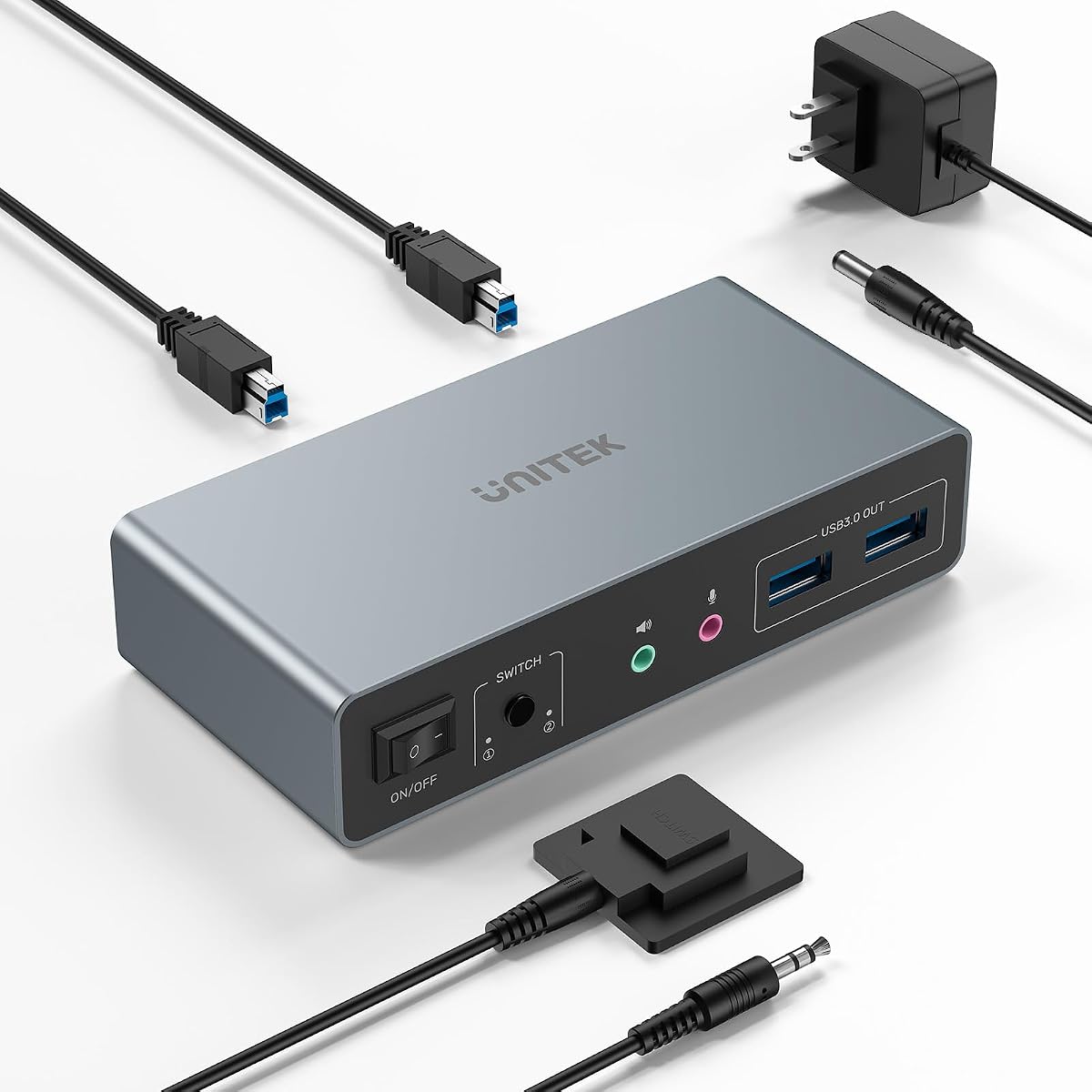
The Unitek KVM switch connects two computers to dual monitors using both HDMI and Displayport inputs. It is compatible with PCs and consoles like PS4 supporting various operating systems including Mac.
We may earn a commission when you buy through this link, at no additional cost to you.
It features four USB-A ports for connecting keyboards, mice, and drives with 5Gbps transfer speeds. The included desktop controller allows placement away from the desk for better space management.
Note that this device is designed for desktop hosts only and does not work with laptops. You must ensure your systems have all necessary video ports before purchase.
Choose this for desktop workstations needing flexible video input options and reliable switching between two machines with external controls.
Supports HDMI 2.0 and HDCP 2.2 standards for stunning lifelike image quality with vibrant colors.
No driver software required for easy installation and immediate use between connected computers.
We may earn a commission when you buy through this link, at no additional cost to you.
This KVM switch allows two computers to share three HDMI monitors with 4K@60Hz support. It includes four USB 3.0 ports for efficient peripheral sharing between systems.
We may earn a commission when you buy through this link, at no additional cost to you.
Each computer must connect three HDMI cables to the KVM to ensure normal video output. It supports extended and copy modes for flexible multitasking across screens.
Note that keyboard hotkeys are not supported and stability relies on the included 12V DC adapter. This ensures USB devices like hard drives receive enough power for operation.
Purchase this if you need triple-screen output and want fast data transfer for peripherals while switching between two desktop computers.
Supports extend or duplicate display modes with Windows+P for customized multi-screen experiences.
Stable power adapter enables hard drives and webcams to function without instability.
We may earn a commission when you buy through this link, at no additional cost to you.
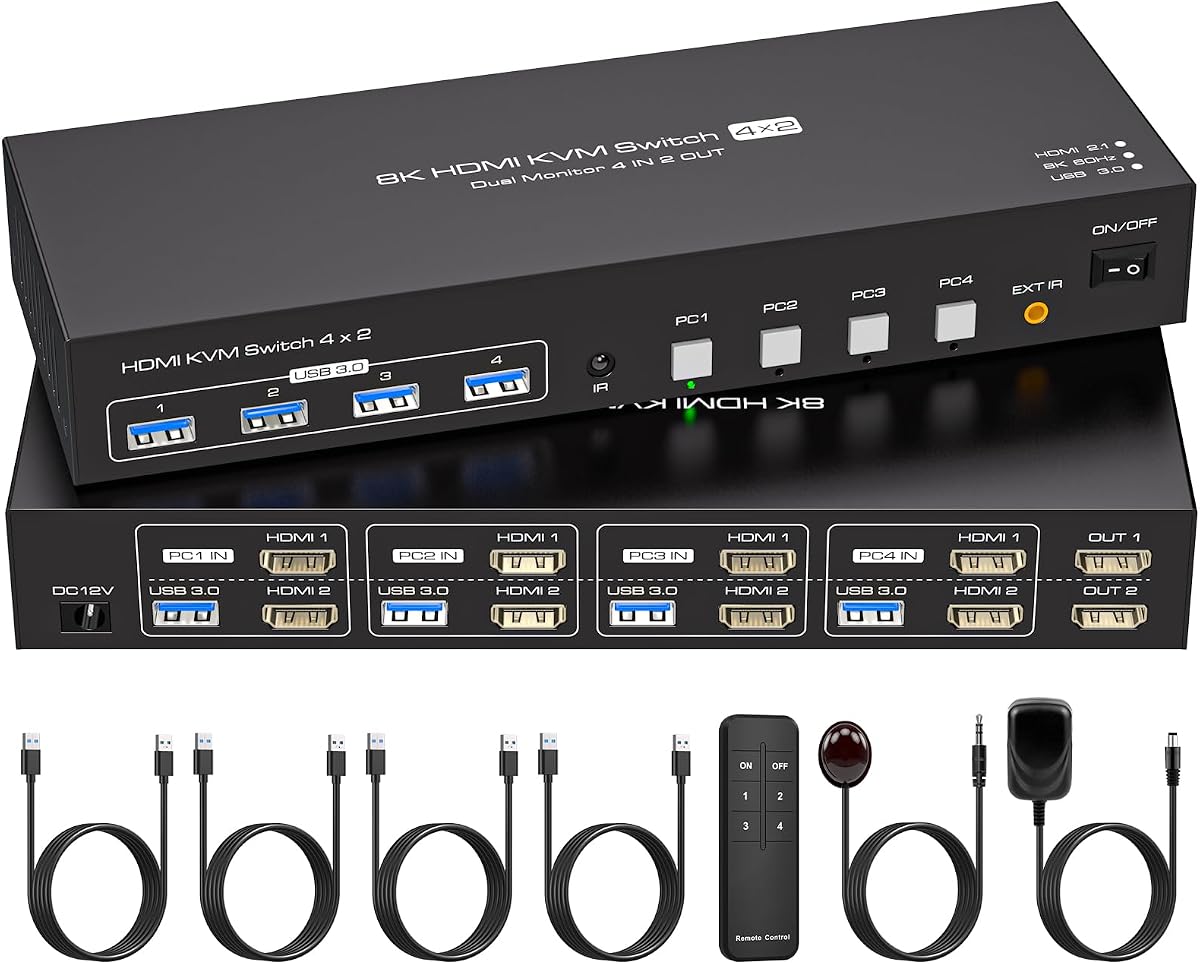
This KVM switch supports four computers sharing two monitors and four USB devices with 8K@60Hz resolution. It includes built-in EDID emulation to prevent window rearrangement when switching.
We may earn a commission when you buy through this link, at no additional cost to you.
It supports extended and duplicate modes for multi-tasking or synchronized displays. Switching can be done via panel buttons or an infrared remote control for convenience.
Note that each computer needs two HDMI ports for this setup which might limit compatibility with standard systems. External power supply is always required for stable equipment operation.
Buy this if you manage multiple workstations and need to switch between four PCs efficiently without losing window layouts.
Built-in emulation saves monitor parameters ensuring windows stay arranged during computer switching.
Infrared remote allows selection of computers directly without reaching the main unit.
We may earn a commission when you buy through this link, at no additional cost to you.
This UGREEN KVM switch connects two computers or consoles to two monitors with 4K@60Hz resolution. It supports extended and mirror modes without software installation or driver software.
We may earn a commission when you buy through this link, at no additional cost to you.
It features four USB 3.0 ports for fast data transfer up to 5Gbps. Compatible with devices like PS5 Xbox Switch and TV boxes for versatile multimedia setups.
Note that EDID emulation is not supported so window arrangement might change on switching. Ensure your computers support dual-screen display before purchasing.
Choose this for console gaming or home office setups needing flexible switching between two video sources with high resolution.
Works with HDMI source devices including PCs Switch PS5 Xbox and Blu-ray players.
Includes multiple power adapters to ensure USB devices function normally.
We may earn a commission when you buy through this link, at no additional cost to you.
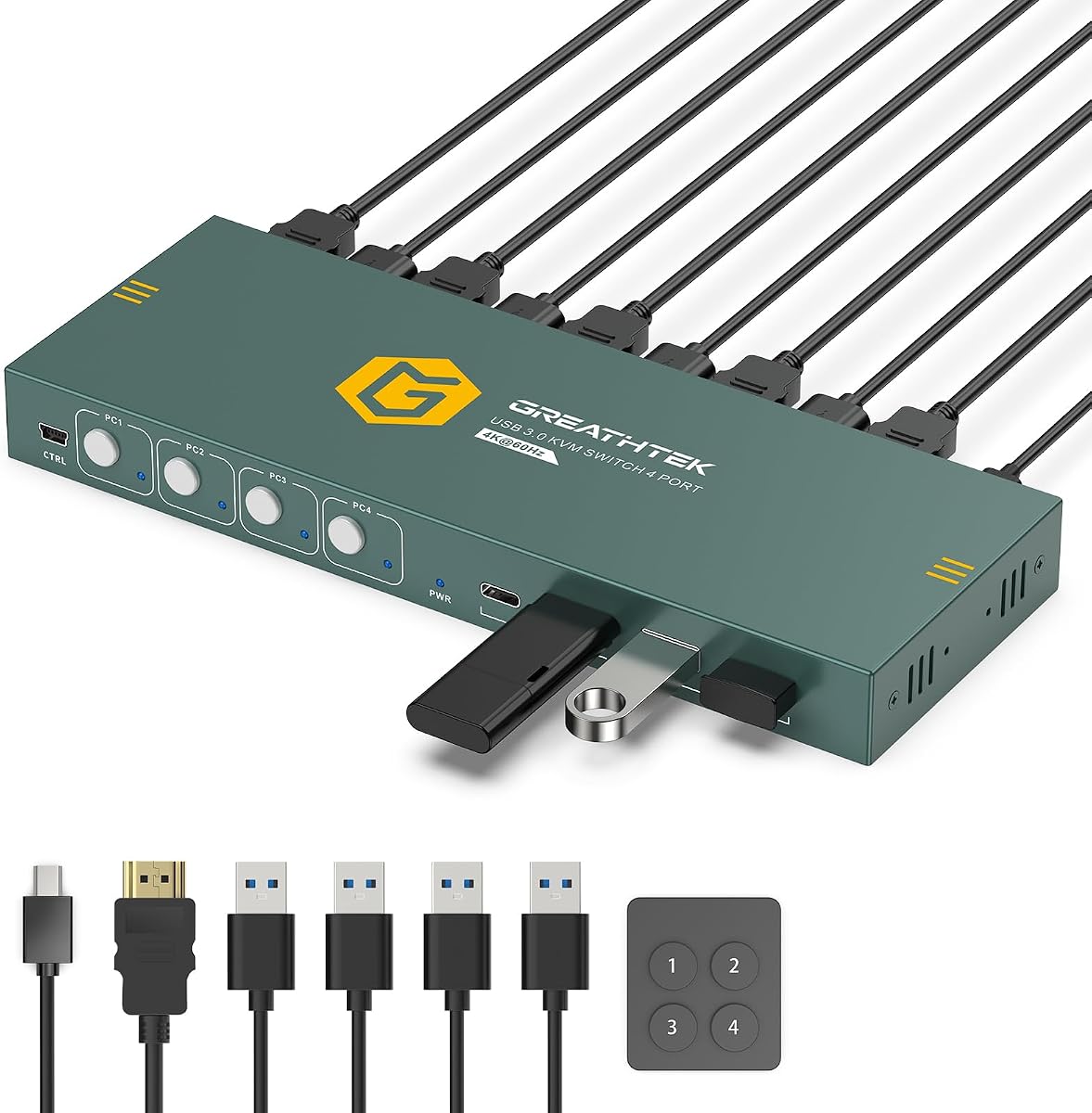
This KVM switch controls four computers with one monitor and keyboard using one set of cables. It offers 4K@60Hz resolution and supports USB 3.0 data speeds up to 5Gbps.
We may earn a commission when you buy through this link, at no additional cost to you.
EDID Adaptive automatically detects displays to match resolution settings when switching between computers. Numbered buttons allow one-touch access to each PC with clear active LED indicators.
It includes a wired remote and mounting brackets for flexible setup in offices or test benches. Hotkey switching is not supported so manual buttons must be used.
Purchase this for test benches or workstations needing quick and efficient switching between four computers without cable clutter.
Helps match appropriate resolution settings automatically when switching between computers.
Numbered 1-4 buttons provide direct access to each computer instantly.
We may earn a commission when you buy through this link, at no additional cost to you.
This KVM switch supports sharing a set of mouse and keyboard between two computers with one monitor. It allows switching via buttons or a desktop controller for cleaner desks.
We may earn a commission when you buy through this link, at no additional cost to you.
It supports 4K@60Hz resolution and hot-swappable USB devices without rebooting. The package includes USB 2.0 cables and a desktop controller for easy operation.
Note that this small switch uses USB 2.0 so data speeds are slower than USB 3.0. It also does not recommend use with Mac devices for compatibility reasons.
Choose this for compact home office setups needing simple switching between two PCs without external power supply requirements.
Lightweight construction with low power consumption makes it easy to install anywhere.
Allows connecting devices without rebooting ensuring flexibility and portability.
We may earn a commission when you buy through this link, at no additional cost to you.
Selecting the right KVM switch depends on your monitor count, resolution needs, and peripheral requirements. This guide breaks down the key factors to consider.
Determine how many displays you need to connect. Options range from single-monitor setups to dual or triple-monitor configurations. Ensure the switch supports your display count for simultaneous output.
Choose a model matching your monitor count to avoid compatibility issues or wasted ports.
Check the maximum resolution supported by the switch. Look for 4K@60Hz or higher like 8K if you need high clarity for design or media work. Ensure your cables match these requirements.
Higher resolution support ensures clear visuals especially for content creators or detailed spreadsheets.
Verify the number and type of USB ports available. USB 3.0 offers faster transfer speeds than USB 2.0 which matters for drives or webcams. Also check for USB-C compatibility if needed.
Select a switch with enough high-speed ports to connect all your shared peripherals efficiently.
Consider how you will switch between computers. Options include front-panel buttons, wired remotes, or infrared remotes. Some models lack keyboard hotkey support which may limit speed.
Choose a switching method that fits your desk layout and workflow needs for easy access.
Some KVM switches require an external power adapter especially for high-power USB devices. Others draw power from the USB connection. Check if an adapter is included or needed.
External power ensures stability when using hard drives or charging devices through the switch.
Ensure the switch supports your operating system like Windows, Linux, or Mac. Most devices are plug and play but some may have limitations with specific OS versions or laptop ports.
Compatibility across systems prevents installation hassles and ensures all features work correctly.
Look for durable materials like aluminum housings which help with heat dissipation and longevity. A sturdy build reduces wear on ports from frequent plugging and unplugging.
Invest in a robust build for reliable performance especially in professional or heavy-use environments.
Check which cables are included in the package. Some switches come with HDMI or DP cables while others do not. This affects setup cost and convenience.
Verify included accessories to avoid extra purchases or compatibility issues with your existing cables.
Connect each computer to the switch using HDMI or Displayport cables and USB cables. Ensure monitors are connected to the output ports on the switch for video signal.
Use the provided controller or buttons to switch between connected computers. Check LED indicators to confirm which computer is currently active.
Keep the device well-ventilated and avoid overloading USB ports. Regularly update drivers on your computers to ensure smooth communication with the switch.
Most KVM switches work with desktops. Some models like the Unitek switch are not compatible with laptops due to output limitations. Check product notes before purchasing to ensure laptop support.
Many modern KVM switches include USB 3.0 ports for faster data transfer. These allow quick file transfers with external drives without needing direct PC connections. Verify specs before buying.
Setup typically requires HDMI or Displayport cables and USB cables. Some packages include these cables but others do not. Ensure you have enough cables to connect all computers and monitors.
Ensure all cables are securely connected and the switch is powered. Check that your computers support the required number of displays. Using adapters may cause signal issues.
Many KVM switches do not support keyboard hotkey toggles. You must use the physical buttons or included controllers to switch between computers. Verify this feature in product details.
Yes if the switch supports high refresh rates like 144Hz. Some models may introduce minor latency. Check resolution and refresh rate specs to match your gaming setup needs.
We explored ten top KVM switches ranging from affordable single-monitor options to high-end multi-display units. Each model offers unique features for productivity and convenience.
Prioritize resolution and port needs based on your workflow. If you need remote access the GL.iNet model stands out while others offer cost-effective desktop solutions.
Check current availability and confirm specs before buying. Prices vary by retailer so verify details to ensure you get the right switch for your setup.