
Hearvo USB 3.0 HDMI KVM Switch
4.0Editor score
Supports 4K resolution at 60Hz
Includes four USB 3.0 ports
Switches via button or remote
This guide compares the top laptop with KVM support solutions for dual setups, highlighting features like 4K6, USB-C docking, and switching speed for profession
Choosing a laptop with KVM support can transform your workspace by allowing seamless switching between multiple devices. Whether you are a developer, designer, or power user, having a streamlined setup saves time and reduces clutter.
We compared ten top-rated KVM switches and docking stations designed specifically for laptop environments. Our analysis focuses on compatibility, video quality, data transfer speeds, and ease of integration into modern hybrid workflows.
Each pick below shows what makes the device unique and who it serves best. Please note that prices fluctuate frequently on retail platforms, so always verify current availability before making your final purchasing decision today.
4.0Editor score

4.2Editor score

4.9Editor score
This table provides a side-by-side comparison of the leading solutions available in the market. It highlights key specifications like supported resolutions, port counts, and charging capabilities to help you choose quickly.


The Hearvo USB 3.0 HDMI KVM Switch is a solid entry-level choice for users needing basic dual-computer control. With a 4.0 rating, it offers reliable performance for simple office setups without breaking the budget.
We may earn a commission when you buy through this link, at no additional cost to you.
This device allows you to share a single monitor, keyboard, and mouse between two computers effortlessly. It supports 4K resolution at 60Hz, ensuring crisp visuals for presentations or media consumption. The inclusion of four USB 3.0 ports means you can also share peripherals like printers or drives.
While it lacks advanced features like video charging or multi-monitor support, its simplicity is a strength. You do not need drivers or external power, making installation straightforward. However, the single monitor limitation might be restrictive for power users.
This switch is ideal for students or home office workers managing a laptop and a desktop. If you need a cost-effective way to declutter your desk while maintaining full functionality, this model delivers excellent value for the price.
You can connect various devices like webcams and scanners to the USB ports, allowing immediate access from either computer without unplugging cables.
The 4K support ensures that your content looks sharp, whether you are editing photos or reviewing detailed spreadsheets on a single screen.
We may earn a commission when you buy through this link, at no additional cost to you.
This versatile KVM switch stands out for its ability to connect up to four computers to two monitors. It is perfect for IT professionals or developers who need to manage multiple systems from a single desk. The hybrid input design accommodates various connection types like USB-C and DisplayPort.
We may earn a commission when you buy through this link, at no additional cost to you.
The device supports dual 4K at 60Hz, providing sharp visuals for multitasking. It features an EDID emulator to prevent screen flickering during switching. Additionally, the 100W PD port allows you to charge your laptop while using it, reducing cable clutter significantly.
Setup can be intricate due to the need for multiple video and USB cables per desktop. However, the included power adapter ensures stable performance even with high-power peripherals. The switching options via panel or remote offer flexibility for different desk layouts.
If you manage a fleet of devices or need a flexible workstation for multiple projects, this switch is highly recommended. It balances high-end features with practical connectivity, making it a top choice for demanding environments.
The switch accepts various inputs like DP and HDMI simultaneously, making it adaptable for laptops with different port configurations without needing extra adapters.
With 100W PD charging, you can keep your laptop powered through the switch, which simplifies your workspace and removes the need for a separate wall charger.
We may earn a commission when you buy through this link, at no additional cost to you.
This KVM switch is designed specifically for laptop users needing three external displays. It combines docking capabilities with switching functions, allowing seamless toggling between two laptops. The MST support enables distinct desktops on three screens for increased productivity.
We may earn a commission when you buy through this link, at no additional cost to you.
Featuring 10Gbps USB 3.1 Gen2 ports, it handles large file transfers efficiently. The 100W PD port ensures your laptop remains charged during use. The package includes a wired remote, adding convenience for switching without touching the device.
Compatibility is key here; Windows laptops support extended modes well, but Mac users might be restricted to mirrored displays depending on their hardware. Also, the switch requires specific USB-C ports with DP Alt function to work correctly with three screens.
For content creators or traders who need extensive screen real estate, this is a premium choice. It streamlines your desk by reducing the need for separate docks and switches. Ensure your laptop meets the hardware requirements before purchasing to avoid limitations.
Multi-Stream Transport allows you to extend your desktop across three monitors, giving you ample space to view charts and documents side-by-side.
The 10Gbps speed ensures that external SSDs and drives move data quickly, preventing bottlenecks when working with large video or image files.
We may earn a commission when you buy through this link, at no additional cost to you.
The AV Access 8K KVM Switch is a powerhouse for visual quality. It supports 8K resolution and high refresh rates, making it suitable for gaming and design work. The dock functionality integrates peripherals and network access into one compact unit.
We may earn a commission when you buy through this link, at no additional cost to you.
One standout feature is its ability to keep both computers online even when switching. This means background downloads or syncs continue uninterrupted. It also includes SD card readers and audio jacks, reducing the need for extra dongles on your desk.
However, Mac users may face limitations with extended displays across multiple monitors due to OS restrictions. Additionally, setup requires compatible USB-C video outputs. Despite this, the performance for Windows setups is top-tier for visual fidelity.
If you need a setup that supports high-end displays and keeps your network active, this is a strong contender. It is ideal for professionals who rely on visual precision and seamless connectivity in their daily workflows.
Unlike older switches, this one maintains an active network connection on both computers, so you never lose internet access when changing control.
With 8K support, you can view ultra-detailed images and text with crystal clear clarity, which is essential for photo editing and professional design tasks.
We may earn a commission when you buy through this link, at no additional cost to you.
This dock is tailored for users managing two laptops with dual monitors. It simplifies the workflow by integrating KVM and docking features. The 12-in-1 connectivity offers everything from Ethernet to SD card slots in one place.
We may earn a commission when you buy through this link, at no additional cost to you.
Switching is fast, taking only 2-3 seconds thanks to EDID emulation. You can charge two laptops simultaneously at 60W each, which is great for shared desks. The device supports 4K video, ensuring your visuals remain sharp.
It is important to use the included USB-C cables for best performance. Mac users might find the mirror mode restriction limiting for extended desktops. But for Windows users, the integration is seamless and efficient.
For hybrid work setups where you switch between work and personal laptops, this dock provides a clean solution. It keeps your desk organized and ensures both devices stay powered and connected efficiently.
This feature ensures your monitor recognizes the connected laptop correctly, preventing resolution issues when you switch between systems.
Being able to charge two laptops at once via the dock means you do not need separate power bricks cluttering your desk space.
We may earn a commission when you buy through this link, at no additional cost to you.
This unit is one of the highest-rated KVM docks available. It brings both a laptop and a desktop into a triple-monitor setup with 8K support. The performance is stable, and it includes extensive features for a complete workstation experience.
We may earn a commission when you buy through this link, at no additional cost to you.
Like its sibling model, it keeps both computers online during switching. This is critical for professionals running background tasks. It also supports high-speed data transfer and includes useful peripherals like audio jacks and card readers.
Mac users should note that extended modes are restricted, but the resolution support is excellent for high-end displays. It requires HDMI and DP cables separately, so budget accordingly. The build quality is robust enough for daily heavy use.
If you are looking for the best-rated 8K docking solution, this is a top pick. It handles demanding workflows with ease and ensures your entire workspace remains functional even when switching control.
With multiple USB 3.2 ports and card readers, you can attach almost any peripheral you need without reaching for extra hubs.
The 8K support ensures you can view high-resolution video and graphics without any compression artifacts or blur.
We may earn a commission when you buy through this link, at no additional cost to you.
This mid-range option offers solid performance for dual laptop setups. It provides extensive connectivity, including a Gigabit Ethernet port, which is often missing in cheaper hubs. It supports 100W charging to keep your devices powered up.
We may earn a commission when you buy through this link, at no additional cost to you.
Switching between laptops is quick and easy via buttons or a remote. It also includes SD card and audio ports for convenience. It supports dual 4K visuals, which is impressive for this price tier.
Users should ensure their laptops support MST for extended displays. Mac users will be limited to mirrored displays. The charging requires the original adapter plugged into the dock, which adds a slight complexity.
For developers or consultants managing two laptops, this offers a great balance of features and price. It keeps your desk clean while ensuring both machines have internet and power access at all times.
Having a dedicated Ethernet port ensures stable and fast internet access, which is crucial for cloud syncing and video calls.
The 100W support means you can charge high-performance laptops without worrying about battery drain during long work sessions.
We may earn a commission when you buy through this link, at no additional cost to you.
If your setup uses DisplayPort, this switch is an excellent choice. It supports 8K resolution and high refresh rates, making it ideal for gaming or media. The LED indicators help you know which computer is active.
We may earn a commission when you buy through this link, at no additional cost to you.
It includes a wireless remote, which adds a layer of convenience. The four USB ports allow for good peripheral sharing. However, it requires an external power adapter to function properly.
Note that cables are sold separately. This is common for high-performance switches but adds to the total cost. The wireless remote works well without needing a direct line of sight.
This is a great pick for users with specific display needs. If you value refresh rates and DisplayPort compatibility, this switch provides reliable performance at a reasonable price point.
The support for 4K@120Hz makes this switch suitable for gamers who want smooth motion and low latency when switching between PCs.
The wireless remote allows you to switch computers from your chair, which is more convenient than reaching under your desk.
We may earn a commission when you buy through this link, at no additional cost to you.
This switch is designed for USB-C users needing high-speed data. It supports up to 20Gbps, which is great for large file transfers. The 140W charging is powerful enough for most modern laptops.
We may earn a commission when you buy through this link, at no additional cost to you.
It is compact and works with Thunderbolt 4 docks. However, it is not compatible with Dell docks, so check your hardware carefully. The wireless remote option makes switching easy.
The lower rating suggests some compatibility issues exist with certain setups. It is best for users with standard USB-C or Thunderbolt docks. If your devices support DP Alt Mode, it should work well.
For users prioritizing speed and charging power, this is a strong option. Just ensure your specific dock and monitor setup are compatible before buying to avoid issues.
With 140W support, you can charge high-performance laptops efficiently even while using the switch for other data tasks.
The 20Gbps bandwidth allows for rapid file movement, reducing the wait time when syncing data between computers.
We may earn a commission when you buy through this link, at no additional cost to you.
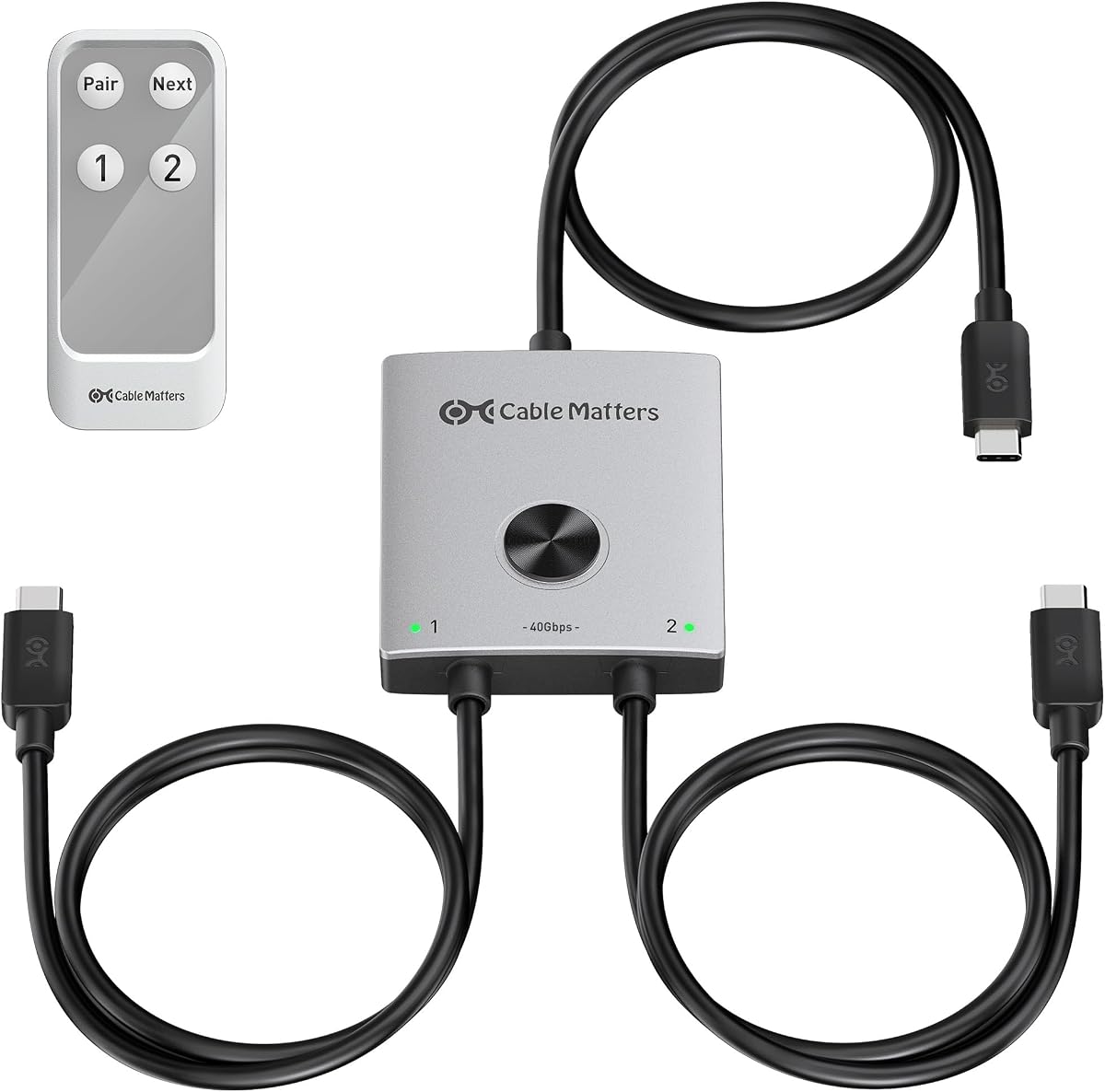
This is the fastest option available with 40Gbps bandwidth. It supports Thunderbolt 4 docks and 8K video resolutions. The RF remote works without needing a direct line of sight, which is convenient.
We may earn a commission when you buy through this link, at no additional cost to you.
It supports 140W charging and is highly rated by users. However, it requires a dock with a detachable host cable. Built-in cables in some docks will not work with this switch.
Despite the strict compatibility requirements, it offers the best performance for Thunderbolt users. It handles high-resolution video and data transfer without bottlenecks. It is ideal for demanding professional workflows.
If you have a Thunderbolt setup and need the absolute highest speed, this is the top choice. Just verify your dock's cable setup before purchasing to ensure it meets the requirements.
Full Thunderbolt 4 compatibility ensures that high-speed external storage and monitors work flawlessly with this switch.
Unlike infrared remotes, the RF remote works even if the device is hidden inside a cabinet or under a desk.
We may earn a commission when you buy through this link, at no additional cost to you.
Selecting the right KVM support solution depends on your specific hardware and workflow needs. This section breaks down key factors to consider.
Determine how many monitors you need to connect. Basic units handle one monitor, while docking stations support dual or triple setups. Ensure your laptop supports multi-display output via USB-C.
Always check the product's max supported resolution to match your display.
Check if your laptop has USB-C with video output or HDMI. Some switches work only with specific ports. Hybrid models support multiple input types like DP and HDMI simultaneously.
Choose a unit that matches your laptop's existing ports to avoid buying extra adapters.
Look for Power Delivery (PD) support if you want to charge your laptop through the switch. This reduces cable clutter. Higher wattage like 100W or 140W is better for performance laptops.
Ensure the switch supports your laptop's charging needs to keep it powered all day.
Fast switching is vital for productivity. Some units use EDID emulation to prevent screen flickering when changing inputs. Look for reviews mentioning switch times.
Faster switches mean less downtime and better workflow continuity.
Count the USB ports you need for your peripherals. A good switch should offer enough for a keyboard, mouse, and extra devices like drives. Higher speed USB 3.2 is preferable.
More ports mean you do not need a separate USB hub for extra devices.
Some advanced docks include Ethernet ports to share internet connections. This is useful for stable connectivity. Ensure it supports your internet speed.
Ethernet support can keep your connection stable even when switching computers.
Verify OS compatibility. macOS often has different limits than Windows, such as mirror mode restrictions. Check if the switch supports your specific OS version.
Ensure the switch works with your laptop's OS to avoid display issues.
Some switches need external power adapters to work correctly. Check if a power supply is included or if you need to buy one separately.
An external power supply ensures stable performance for all connected devices.
Start by connecting your laptop to the KVM switch using the provided cables. If using a dock, plug in the external power adapter to ensure stable power delivery.
Once connected, connect your shared peripherals like the keyboard and mouse to the USB ports. Ensure your monitors are plugged into the video output ports of the switch.
To switch between devices, press the physical button on the unit or use the included remote. Allow a few seconds for the screen to stabilize and the system to recognize the new input.
KVM support allows you to control multiple computers using a single set of peripherals like a keyboard and mouse. For laptops, this means switching between devices without unplugging cables. It streamlines your workspace.
Yes, but be aware that macOS often limits extended displays to mirror mode. Some switches work better with Windows systems. Always check specific compatibility notes before purchasing for Macs.
Most modern KVM switches support 4K at 60Hz. However, always check the specs to ensure they match your monitor's capabilities. Higher resolutions like 8K are also available on premium models.
Basic switches handle two computers, while hybrid docking stations can support up to four. The number depends on the model. Choose based on how many devices you need to manage.
Most KVM switches are plug-and-play and do not require drivers. However, some docking features might need software. Check the product manual to confirm driver requirements for your specific setup.
Power Delivery allows you to charge your laptop through the switch. This reduces cable clutter. Look for switches with 100W or higher PD support for fast charging.
Yes, but you need a switch compatible with docking stations. Some require detachable cables on the dock. Check the switch's compatibility list to ensure it works with your specific dock.
We have reviewed ten top solutions ranging from budget switches to high-end docking stations. Each offers unique features like 4K support or 100W charging.
When choosing, prioritize the number of monitors you need and your laptop's port types. Ensure the switch supports your OS to avoid display issues.
Remember that prices and availability can change. Verify current specs before buying to ensure the solution meets your workflow needs today.